Set up on the web
Create an account, build your first course from the files you already study from, and find your way around Learn.
Sign in
Go to nooc.study and choose Continue with Google. Use the same account you plan to use on the iPad, so your courses show up in both places.
Nooc is in early access. If you don’t have access yet, join the waitlist from the top of this page.
Create a course
A course is where everything else lives. Open Courses in the sidebar and start a new one. Setup takes three short steps.
- Course details
Name the course and add any guidance Nooc should remember, such as the language or the exam style.
- Topics
Add the topics you already know, or skip this step and let Nooc find them in your files.
- Upload
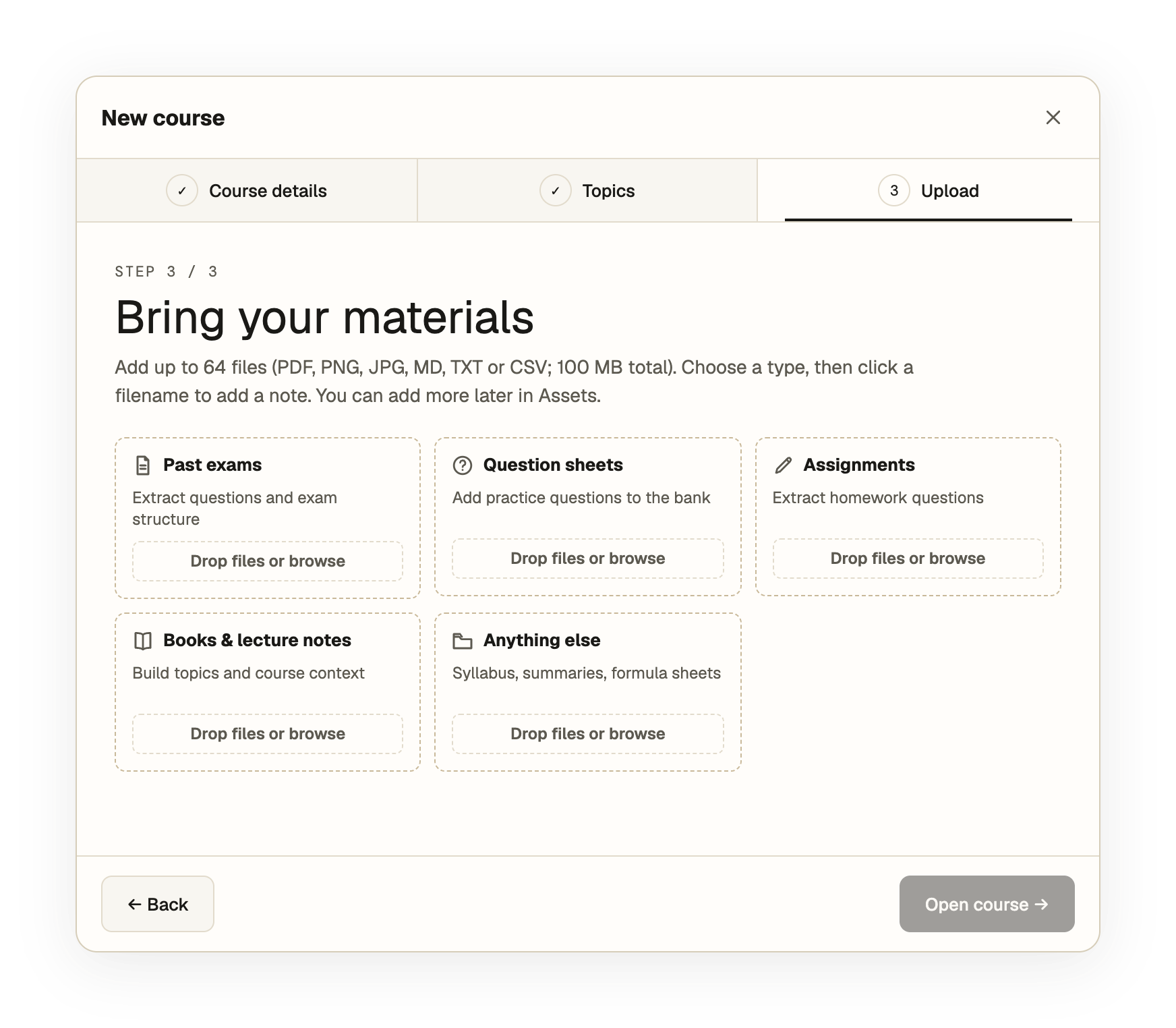
Drop your files into the matching type, then choose Open course.

What to upload
The type you choose tells Nooc how to read each file.
| Type | What Nooc does with it |
|---|---|
| Past exams | Extract questions and exam structure |
| Question sheets | Add practice questions to the bank |
| Assignments | Extract homework questions |
| Books & lecture notes | Build topics and course context |
| Anything else | Syllabus, summaries, formula sheets |
Up to 64 files per course setup: PDF, PNG, JPG, MD, TXT or CSV, 100 MB in total. Click a filename to add a note about it. You can add more files later in Assets.
Find your way around Learn
When the course opens, you land in Learn. Three areas do most of the work.
- Sidebar
- Switch courses, start a new chat, and search your past chats.
- Composer
- Type
@to tag a material and/for commands and math symbols. Click the mic to dictate, or hold it while you talk. - Answer workspace
- Write your answer beside the chat. The + button opens a Code, Canvas, or Text tab, or a file from the course.